

Introduction
Modern smartwatches are designed to deliver information instantly, and the Apple Watch does this exceptionally well through its complication system. These small on-screen elements turn a basic watch face into a smart dashboard tailored to your daily needs.

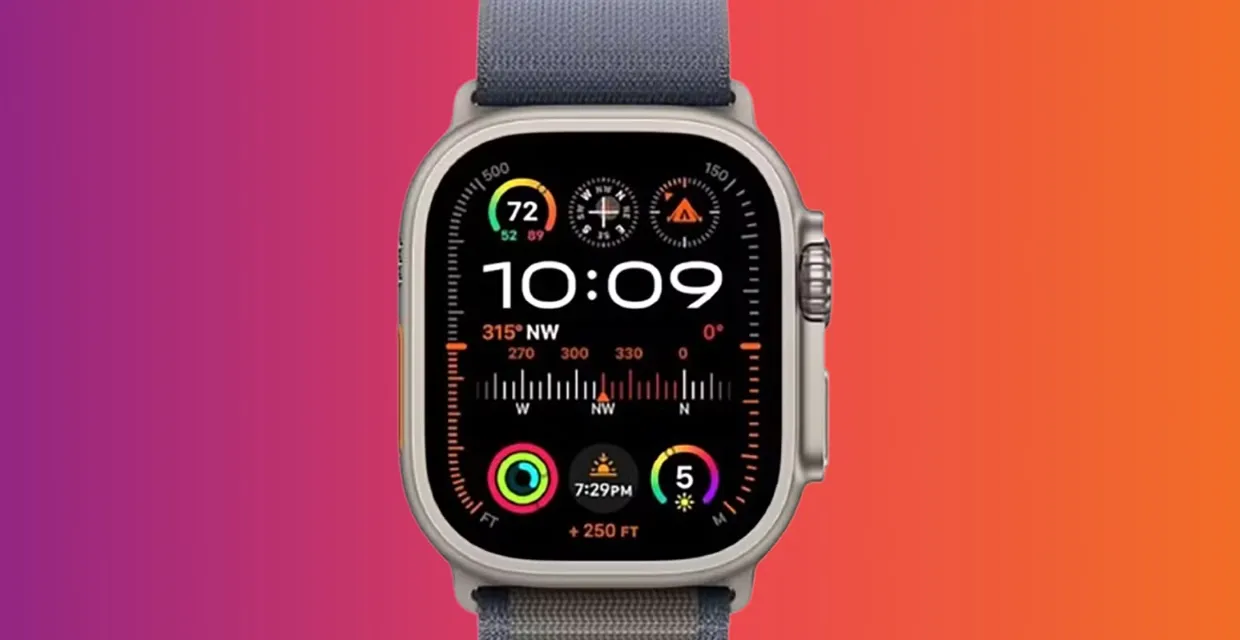
Instead of opening multiple apps, you can view key details—like weather, activity progress, or upcoming events—right from your wrist. This saves time and simplifies how you interact with your device.
This guide covers a full Apple Watch complications list, explains how they function, highlights the best options, and offers solutions to common issues such as missing complications or weather not appearing on certain watch faces.
What Are Apple Watch Complications?
Complications are compact information widgets that appear directly on your watch face. They display live or frequently updated data from built-in and third-party apps.
Simple Examples
- Current temperature
- Daily activity progress
- Next calendar event
- Battery percentage
- Heart rate readings
- Timers and alarms
Each watch face supports a different layout, meaning the number and size of complications can vary significantly.
Full Apple Watch Complications List (Categorized)
1. Core System Complications
These come pre-installed and handle essential functions:
- Date display
- World clock
- Alarm status
- Stopwatch
- Timer
- Battery level
2. Fitness and Health Tracking
Designed for activity monitoring and wellness insights:
- Activity rings
- Workout shortcuts
- Heart rate tracking
- Mindfulness reminders
- Step count (via third-party apps)
3. Weather and Environment
Ideal for staying updated on outdoor conditions:
- Temperature
- Weather conditions
- UV index
- Air quality
- Wind details
4. Productivity Tools
Useful for managing daily tasks:
- Calendar events
- Reminders
- Notes
- Contacts
- Email previews
5. Communication and Media
Helps you stay connected:
- Music controls
- Podcasts
- Phone shortcuts
- Messages
- Digital wallet
6. Third-Party App Complications
Expand functionality beyond default features:
- Sleep tracking tools
- Habit tracking apps
- Navigation services
- Expense or finance trackers
How Apple Watch Complications Function
Complications act as quick-access panels that display data pulled from apps. They update either in real time or at regular intervals.
Core Capabilities
- Instant app launch with a single tap
- At-a-glance information display
- Automatic data refresh
Compatible Watch Faces
Different faces offer different levels of customization:
- Modular (high flexibility)
- Infograph (maximum data display)
- Utility (minimal and clean)
- California (stylish hybrid)
- Brand-specific versions like Nike
Comparison Table: Apple Watch Complications Overview
| Feature | Description | Benefit | Example |
|---|---|---|---|
| Live Updates | Displays current data | Saves time checking apps | Weather temperature |
| Flexible Layout | Choose placement and size | Personalized experience | Modular face |
| App Integration | Syncs with installed apps | Expands usability | Calendar alerts |
| Tap Access | Opens linked app | Faster navigation | Heart rate monitor |
| Size Variations | Multiple display formats | Better readability | Activity rings |
Best Apple Watch Complications for Everyday Use
Most Useful Options
- Weather updates for planning your day
- Activity rings for fitness tracking
- Calendar for scheduling
- Battery indicator for power management
- Heart rate for quick monitoring
Efficiency Boosters
- Reminder alerts
- Timer access
- World clock for multiple time zones
Pro Tip
Use larger complication slots for detailed information like weather forecasts or event schedules, and smaller slots for quick stats.
Statistics and Usage Trends
- Around 65% of smartwatch users customize their watch faces frequently.
- Nearly 70–80% prefer data-rich layouts like Modular or Infograph.
- Fitness-related complications have seen a 35% rise in daily usage worldwide.
- Third-party complication adoption has grown by 25% annually, reflecting increased app integration.
These numbers show that complications are now a core part of the smartwatch experience rather than optional features.
How to Add or Customize Complications
Directly on Your Watch
- Press and hold the watch face
- Select “Edit”
- Swipe to the complication section
- Tap a slot
- Choose your preferred option
Using Your iPhone
- Open the Watch app
- Select your current face
- Modify complications easily
Common Issues and Solutions
Missing Complications
- Restart your watch
- Reinstall the related app
- Check permissions
Weather Not Showing on Modular Face
- Enable location services
- Verify weather app access
- Refresh data manually
Complications Not Updating
- Turn on background app refresh
- Ensure stable internet connection
Pros and Cons
Advantages
- Quick access to essential data
- Highly customizable layouts
- Boosts productivity
- Supports many apps
Limitations
- Some complications refresh less frequently
- Limited slots on certain faces
- Quality depends on app developers
Tips to Optimize Your Setup
- Avoid overcrowding your watch face
- Combine productivity and health features
- Keep apps updated for better syncing
- Switch watch faces based on your routine
Trending FAQs (SEO-Friendly)
1. What complications are available on an Apple Watch?
They include system tools, health metrics, weather updates, productivity widgets, and third-party app integrations.
2. What are the best complications for an Apple Watch?
Popular choices include weather, activity rings, calendar, battery level, and heart rate.
3. What are all the watch complications?
They cover time, date, notifications, fitness tracking, environmental data, and app-based information.
4. Are there side effects to wearing an Apple Watch?
There are no widely reported issues from normal everyday use.
5. Can I add more complications to my Apple Watch?
Yes, installing compatible apps adds new complication options.
6. Can an Apple Watch detect atrial fibrillation?
Certain models include features that can identify irregular heart rhythms.
7. Will the new Apple Watch measure blood pressure?
Future updates may expand health tracking, but features depend on the model.
8. What counts as a watch complication?
Any small, data-driven element shown on the watch face is considered a complication.
9. What Apple Watch has the most complications?
Models supporting Infograph-style faces provide the highest number of slots.
10. Can you add steps as a complication on an Apple Watch?
Yes, usually through third-party fitness apps.
Internal Linking Suggestions
- Apple Watch customization tips
- Best apps for Apple Watch
- Battery-saving strategies
- Watch face design ideas
External Resource Suggestions
- Official Apple Watch support documentation
- App Store listings for complication-enabled apps
- watchOS developer guidelines
Conclusion
Complications redefine how you use your Apple Watch by turning it into a personalized information hub. With the right setup, you can instantly access important updates, manage your schedule, and track key metrics without extra effort.
Exploring the full Apple Watch complications list allows you to tailor your watch experience to match your lifestyle. Start with essential widgets, refine your layout over time, and build a setup that keeps everything you need just a glance away.

